
Template Overview
The Template Library provides access to all templates available in your workspace.
Templates are pre-designed content layouts that help you create professional content while following your organization's branding guidelines. They can include predefined colors, logos, fonts, layouts, and design elements.
Instead of creating content from scratch, you can start from a template and customize it with your own text, images, and information.
In this article, you will learn how templates work, how to create content from a template, and how to manage template-based content in Engage CMS.
What is a Template?
A template is a reusable design that serves as a starting point for creating content.
Templates are often created by designers or administrators to ensure that all content follows company branding and design standards.
For example:
- Store announcements
- Promotional campaigns
- Information screens
- Event announcements
- Digital signage content
A template may already contain:
- Company colors
- Logos
- Fonts
- Layouts
- Placeholder images
- Placeholder text
You simply replace the content with your own information.
Example
Your company has a branded announcement template.
The logo, colors, and typography are already configured.
To create a new promotion, you only need to:
- Open the template
- Replace the images
- Update the text
- Save the content
This helps ensure that all published content follows the company's visual identity.
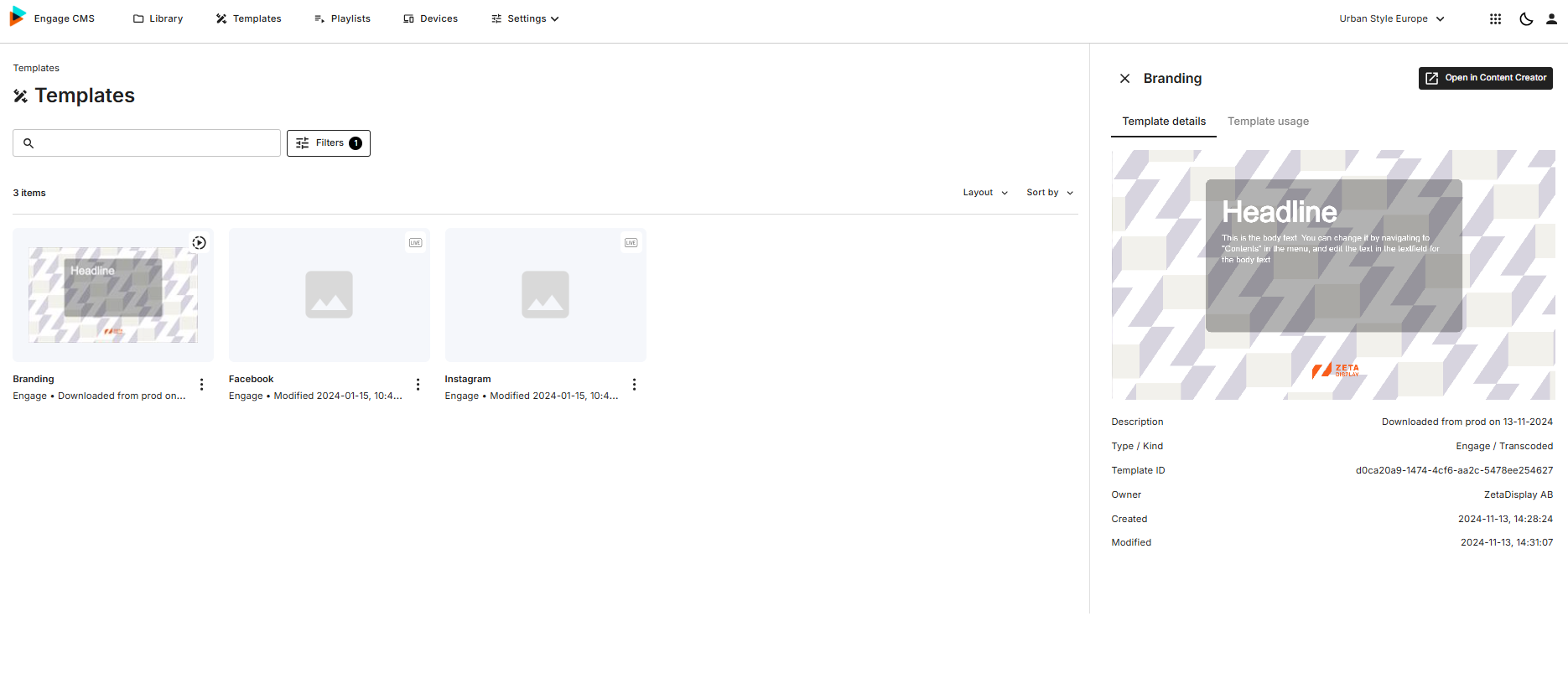
Template Library Overview
The Template Library displays all templates available to your workspace.
From here, you can:
- Browse available templates
- View template details
- See where templates are used
- Open templates for editing
- Create new content based on existing templates
Selecting a template opens the split view, where additional information and actions are available.
Create Content from a Template
To create content using a template:
- Open the Template Library
- Select a template
- Review the template details in the Split view
- Click Edit in Content Creator
- Customize the template
- Save your changes
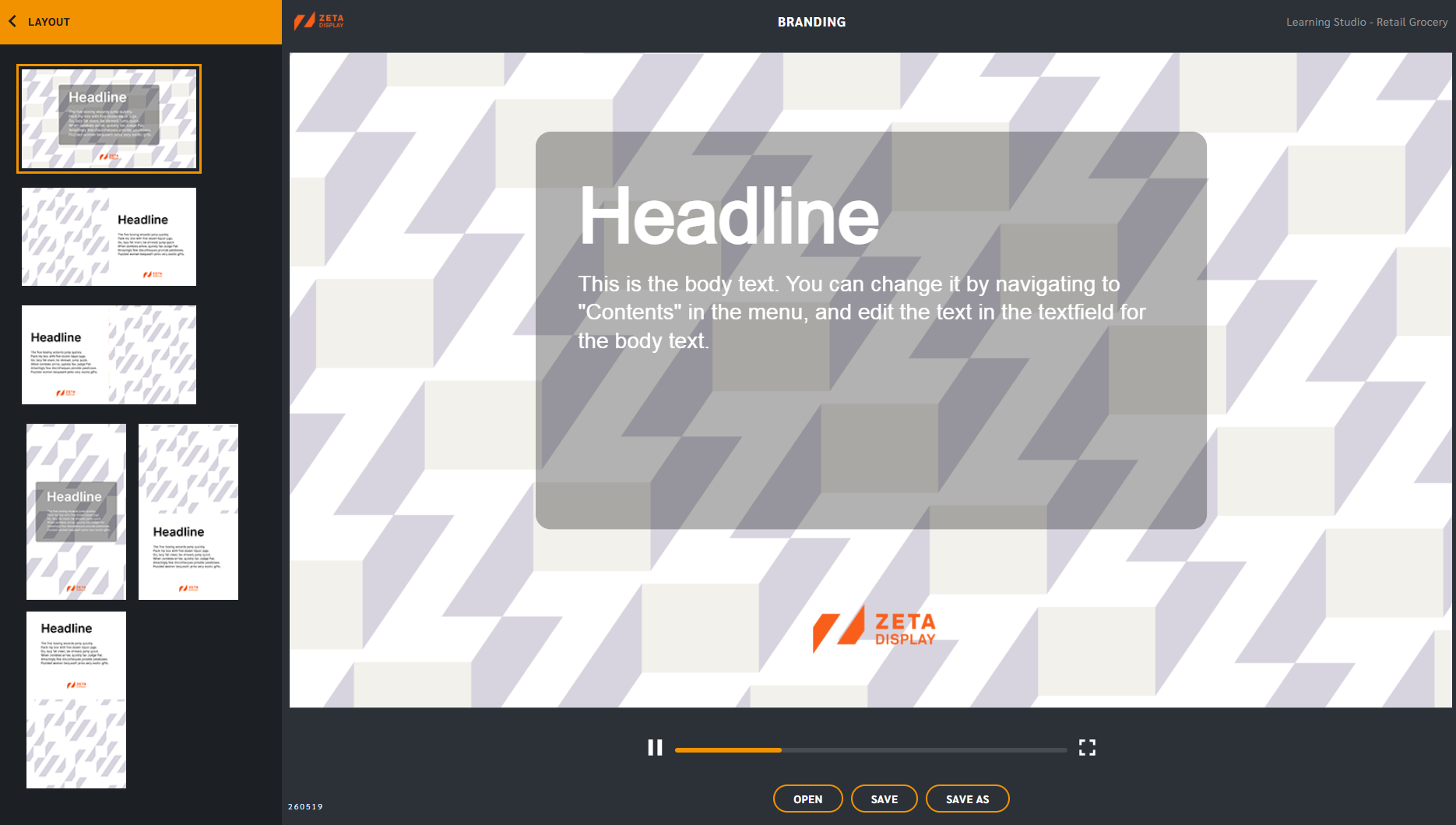
The Content Creator opens in a new browser tab for editing.
Understanding Template Content
It is important to understand the difference between templates and template content.
Template
The original reusable design.
Examples:
- Annoncement Template
- Price and Product Template
- Slideshow Template
Template Content
A customized version created from a template.
Examples:
- Summer Sale Campaign
- New Product Launch
- Local Store Promotion
Once saved, template content becomes a media item and is stored in the Library.
You can then use it in playlists just like images, videos, or other content.
Template Split View
When selecting a template, the Split view provides additional information and actions.
Depending on your permissions, you may be able to:
- View template information
- Open the template in Content Creator
- See where the template is being used
- Review template details
The Split view allows you to quickly understand the purpose of a template before editing it.
Content Creator
Templates are edited using the Content Creator.
The Content Creator allows you to:
- Change text
- Replace images
- Adjust content
- Preview your design
- Save template content
Some templates may have restrictions that prevent certain elements from being modified.
This helps maintain branding consistency across the organization.
Common Questions About the Template Library
Where Are My Edited Templates Stored?
When you save content created from a template, it is stored in the Library.
The saved content is treated as a normal media item and can be:
- Added to playlists
- Scheduled for playback
- Organized into folders
- Shared according to your workspace permissions
The original template remains unchanged.
What is the Template Library?
The Template Library contains all templates available to your workspace and provides a starting point for creating branded content.
What is the difference between a template and template content?
A template is the original design. Template content is a customized version created from that design and saved to the Library.
Can I edit a template?
This depends on the template configuration and your permissions. Some templates allow customization while others have restricted elements.
Where can I find content I created from a template?
Saved template content is stored in the Library and can be used in playlists like any other media file.
Will editing a template affect other users?
No. Creating content from a template creates a separate content item. The original template remains unchanged.
Why does Content Creator open in a new tab?
Templates are edited in the Content Creator, which opens in a separate browser tab to provide a dedicated editing workspace.
Can I use template content in playlists?
Yes. Once saved, template content can be added to playlists, scheduled, and published like other content.