
What is Engage?
Engage CMS is a content management system for managing, scheduling and delivering content across your digital signage network.
From Engage, you can upload and organise content, create playlists, decide what should play on your screens and when, and monitor the devices connected to your network.
Engage brings these tools together in one place, making it easier to manage content and screens across different locations.
How Engage works
The basic workflow in Engage is simple:
Add content → Create a playlist → Schedule and assign it → Display it on your screens
Content such as images and videos is stored in the Library. You use this content to build Playlists, which determine what should be shown. Playlists can then be scheduled and assigned to Devices to control where and when your content is displayed.
Depending on your setup and access, you can also use templates, organise devices into groups, manage power schedules and use labels to help manage larger networks.
Key features
Content Library
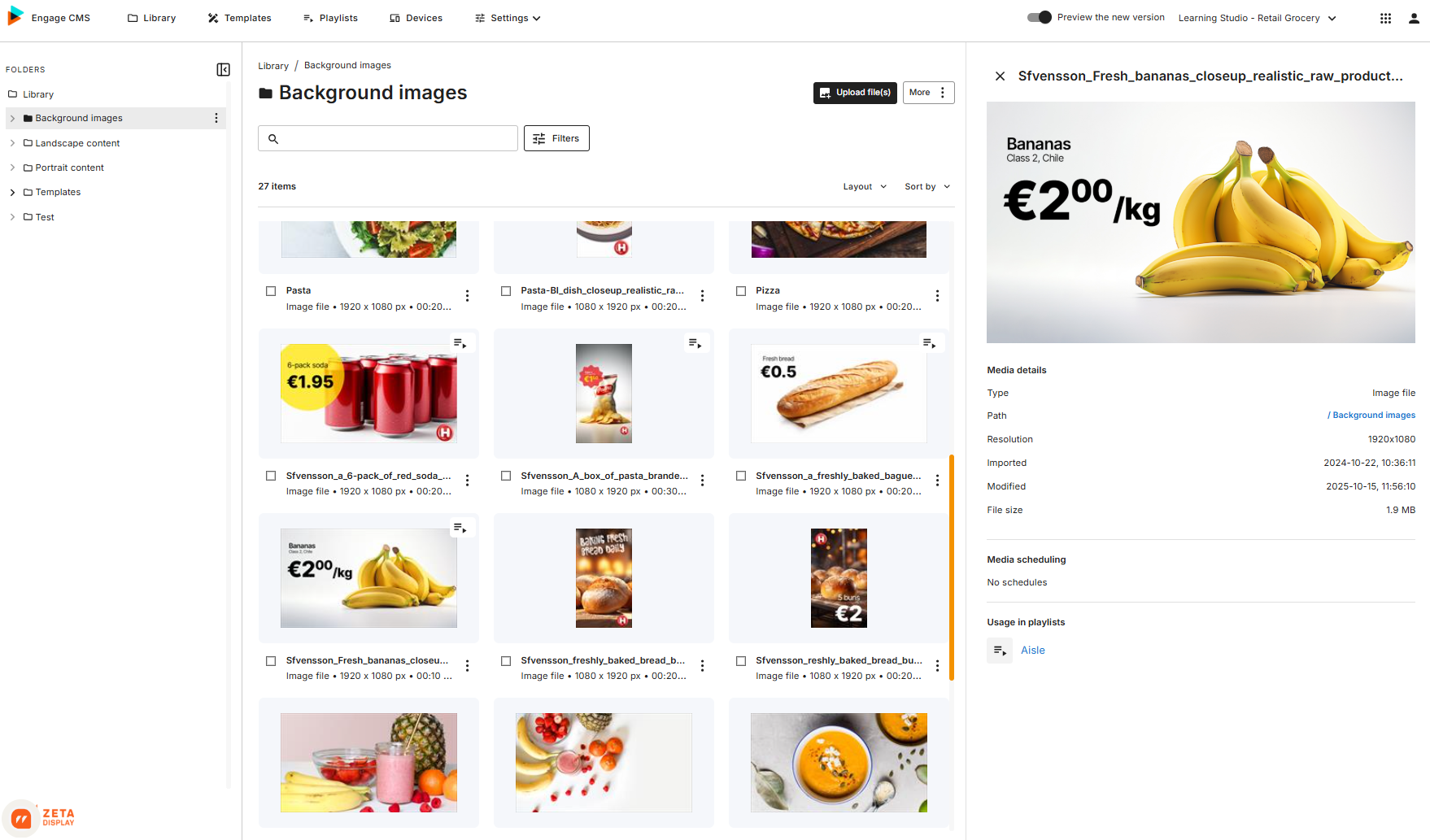
Upload, organise and manage your content in the Library.
The Library keeps your content structured and available for use across playlists and your workspace.
Templates
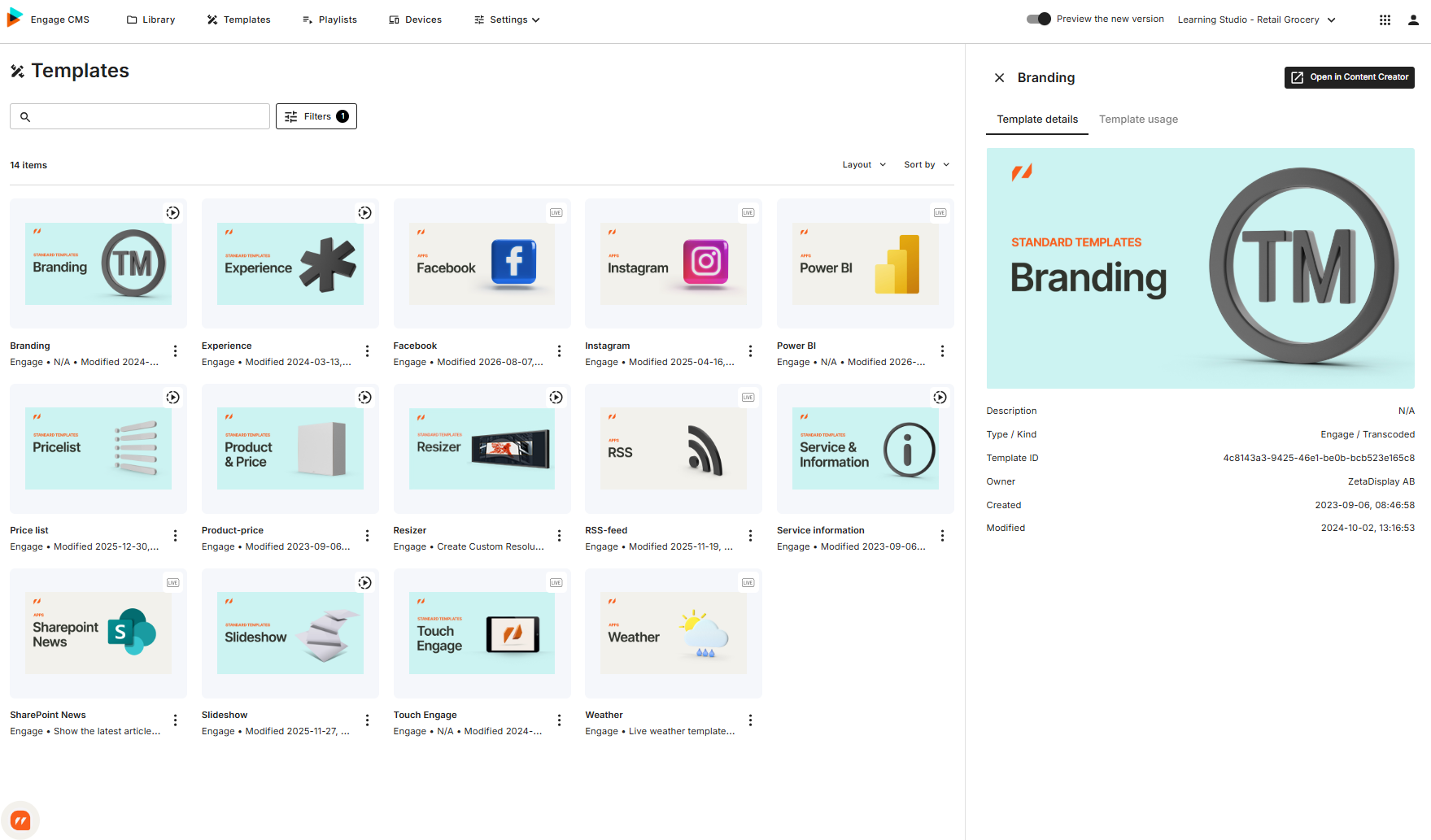
Use Templates to create dynamic or reusable content for your digital signage.
Templates can be edited with the Content Creator, and completed template content is saved to the Library so it can be added to playlists.
Create and manage Playlists
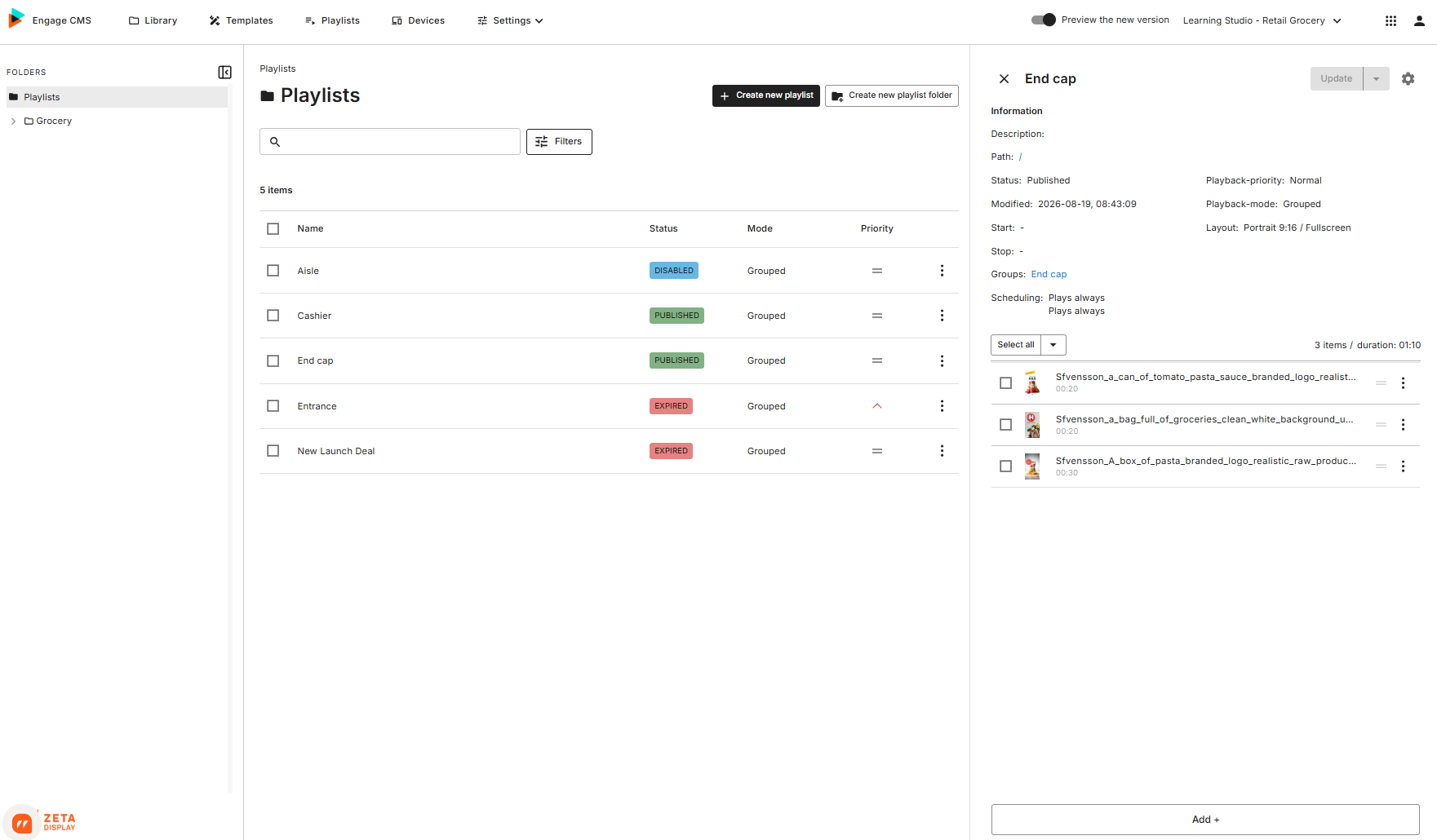
Create Playlists to define which content should play together.
Add content from your Library, arrange it in the order you want and manage how the playlist should be displayed.
Schedule and assign Playlists
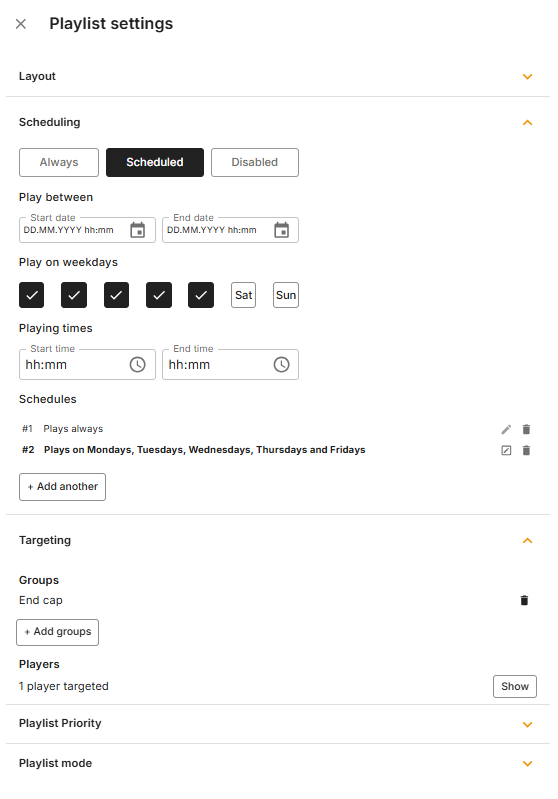
Control where and when your content is displayed by scheduling and assigning playlists to devices.
Multiple playlists and schedules can be used across different screens and locations, with playlist priorities helping determine which content should be shown when schedules overlap.
Devices
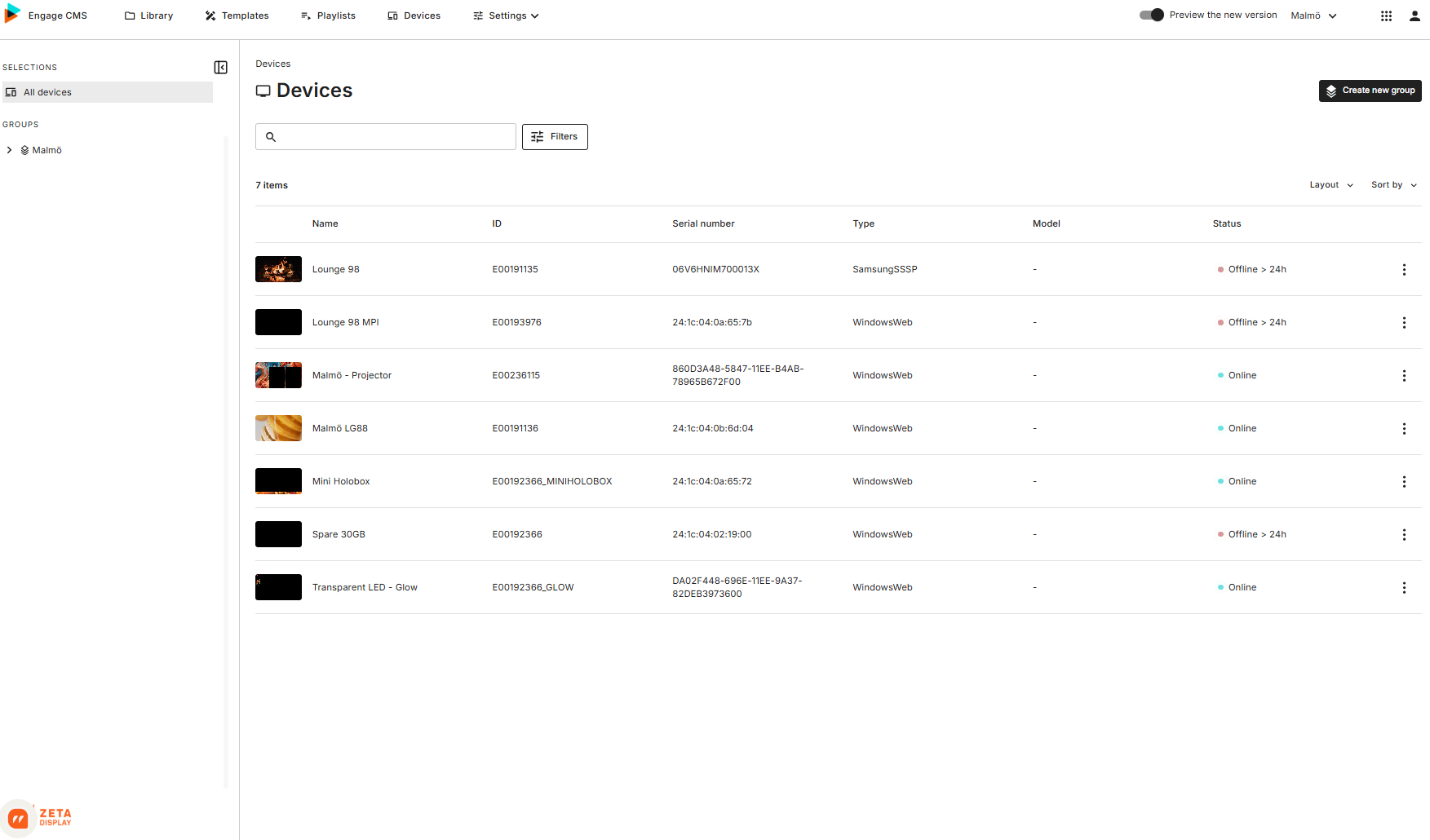
Use Devices to manage the screens and players in your digital signage network.
View devices individually or in groups and check important information such as connection status, assigned playlists and other device details.
Power Schedules
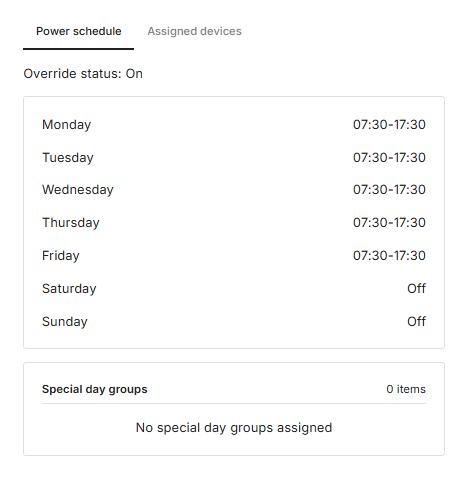
Use Power Schedules to control when screens should be on, off or dimmed.
Create regular weekly schedules based on opening hours and use Special Day Groups when different hours are needed for holidays, events or other specific dates.
Labels
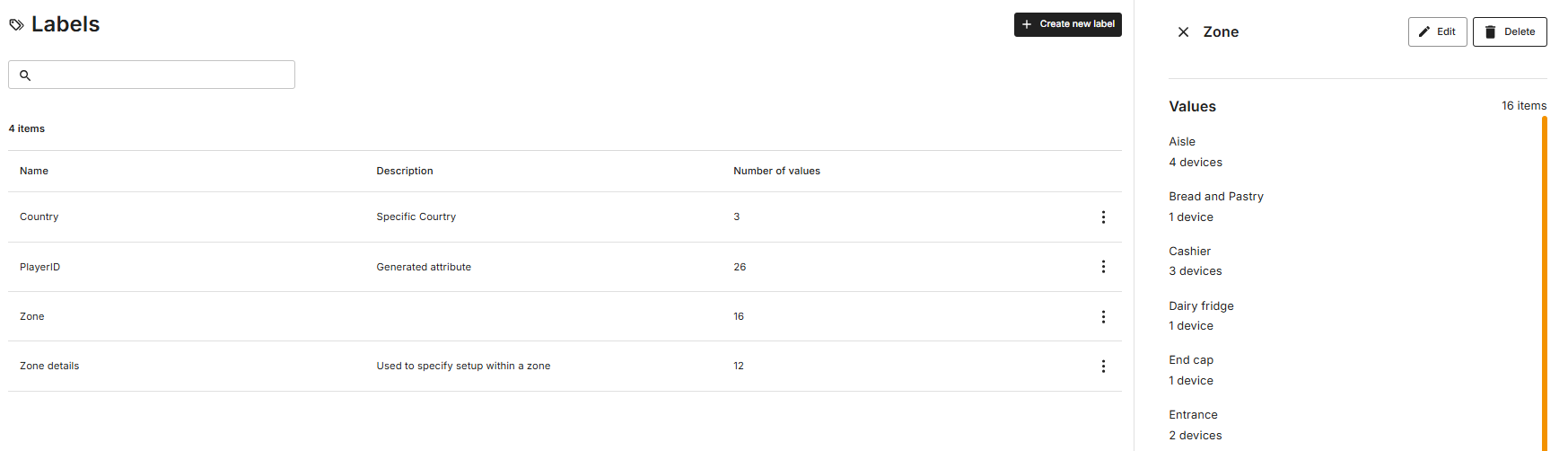
Use Labels to organise and identify devices using information relevant to your organisation, such as location, store type or region.
Labels can also help you find and target the right devices when managing your network.
Network overview
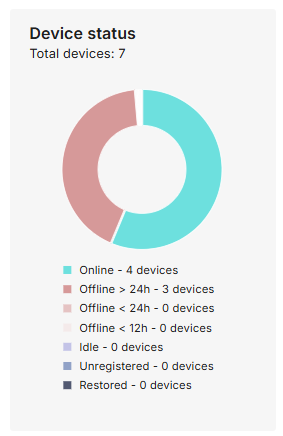
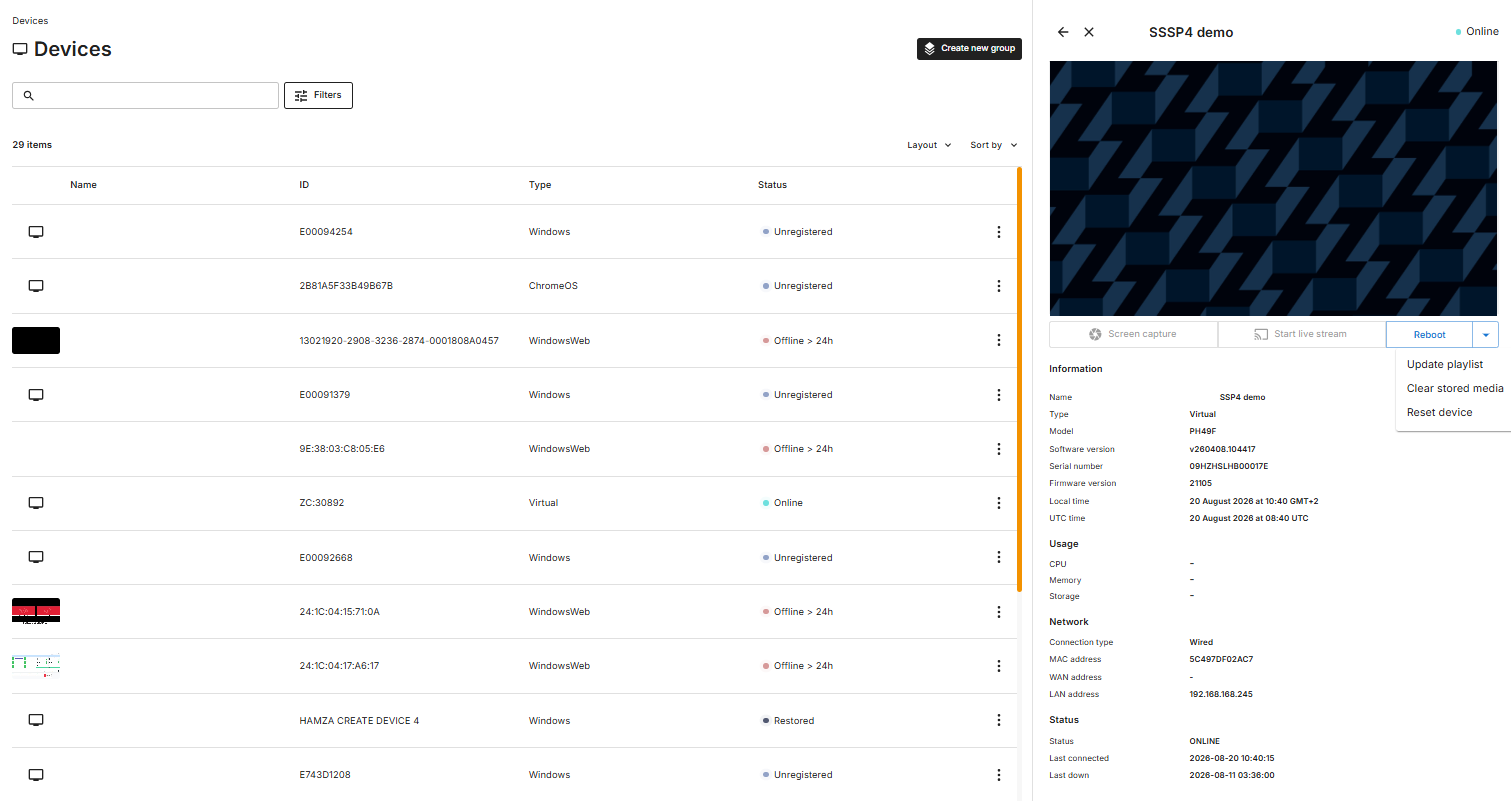
Monitor the status of your devices and quickly identify screens that may require attention.
Device information and status indicators give you an overview of your digital signage network and help you keep track of whether devices are connected and operating as expected.
Workspaces
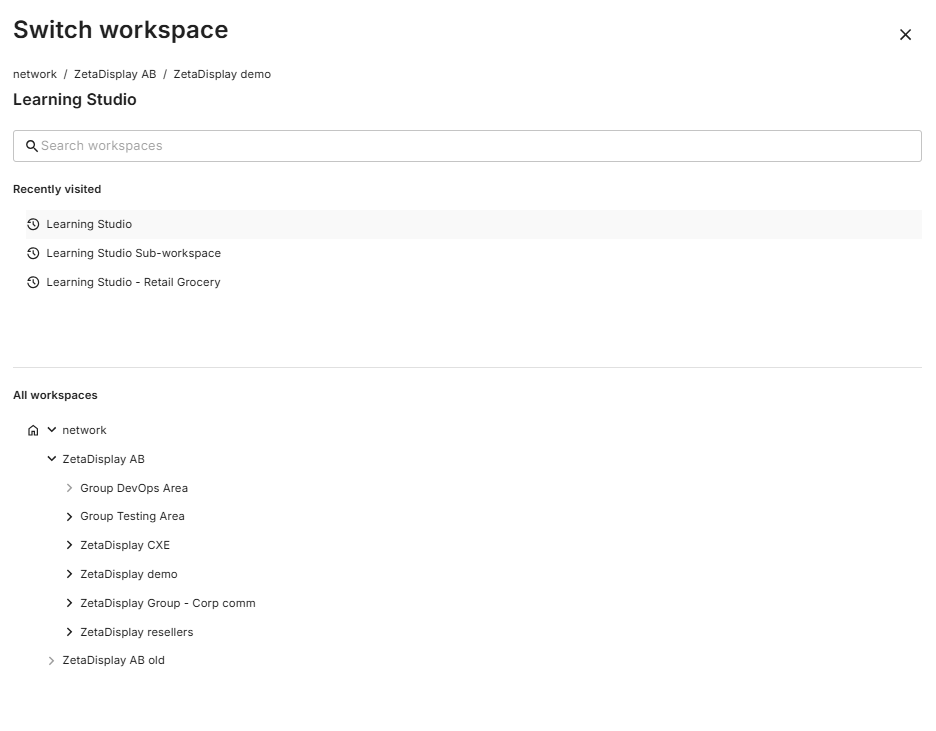
Content, playlists and devices in Engage are organised into Workspaces.
Depending on your organisation and access, you may have access to one or several workspaces. The workspace selector lets you move between the areas you have permission to manage.
What you can see and manage within Engage may also vary depending on your assigned user role and permissions.
Getting started
If you're new to Engage, a good place to start is by becoming familiar with the main areas of the CMS:
Library → Templates → Playlists → Devices → Settings
You don't need to learn everything at once. Help & Guides is available from your profile menu whenever you need instructions or want to learn more about a feature.
Common questions about the Engage CMS
Where do I upload content?
Images, videos and other content are uploaded and managed in the Library. Content stored in the Library can then be added to playlists.
How do I get content onto a screen?
Content is added to a Playlist, and the playlist is then scheduled and assigned to the relevant Device or devices. This determines what content is shown, where it is shown and when it should play.
What is the difference between a Playlist and a Schedule?
A Playlist defines the content you want to show. Its schedule defines when that playlist should be active. Multiple playlists can be scheduled for the same devices, with priorities helping determine what should be displayed when schedules overlap.
What is a Device?
A Device represents a player or screen within your digital signage network. From Devices, you can view its status, assigned playlists and other information about the device.
Why can't I see a feature or workspace?
What you can access in Engage depends on your organisation, assigned workspaces and user permissions. This means your Engage CMS may look slightly different from another user's.
Where can I find more help?
Open Help & Guides from your profile menu to find step-by-step instructions, feature overviews and other guidance for using Engage CMS.